Targeting all content spots within a tour
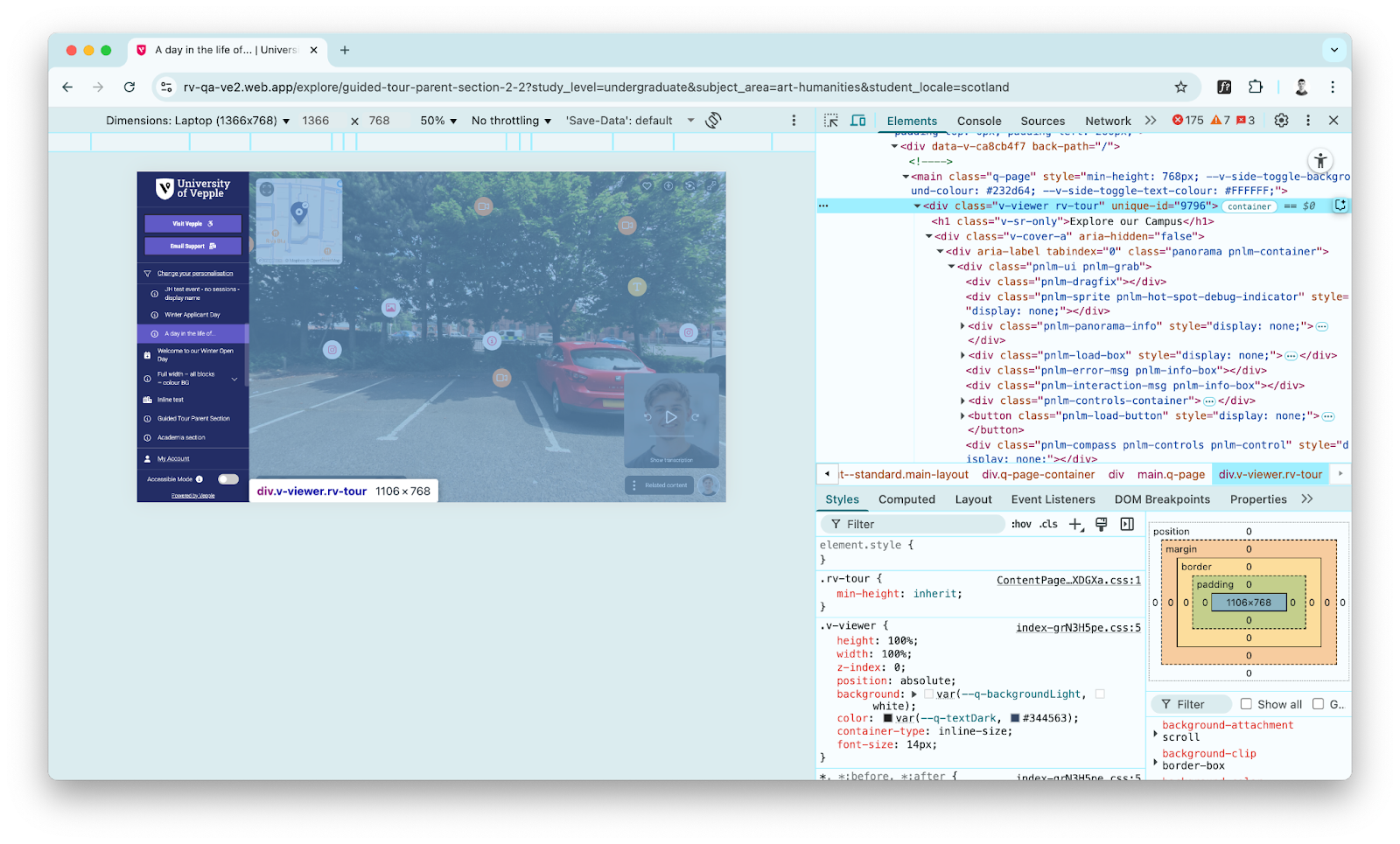
- Go to a specific tour, right click and choose “Inspect”, and find the piece of code saying “v-viewer rv-tour” and copy the “unique-id”, for example 9796 in this example.
- Go to the Custom CSS tab in Site Options and add the styling you want. Remember to use “!important” at the end of each CSS line. For example:
div[unique-id="9796"] .v-contentspot__icon {
   background: red !important;
 color: white !important;
}
Targeting specific content spots within a tour
- Go to a specific tour, right click and choose “Inspect”, and find the piece of code saying “v-viewer rv-tour” and copy the “unique-id”, for example 9796 in this example.
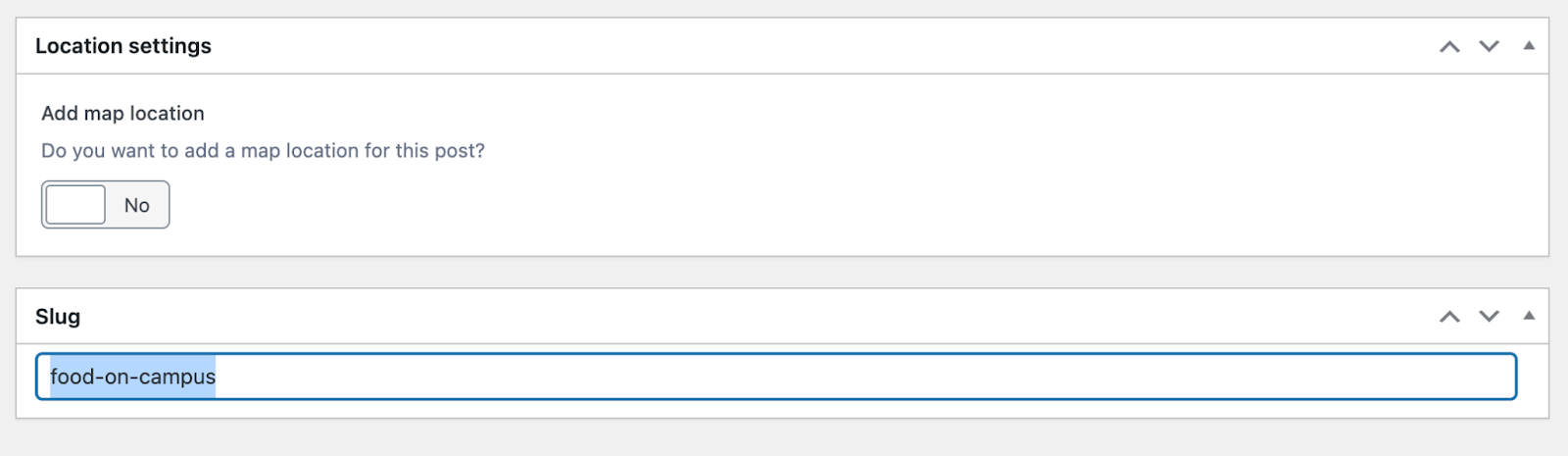
- Then, go to the Content Spot post you’ve made, click “Screen Options” in the top right corner, make sure “Slug” is checked, and then scroll down to the bottom of the page, and copy the entire slug.
- Navigate to Site Options, go to the Custom CSS Tab and start a new line.
- Start by typing #hs- followed by the slug you want to target. Then add a space and type
.v-contentspot__icon.
- This combination creates your CSS selector. Next, open curly brackets { } after the selector. Inside the brackets, write your CSS rules. Close the brackets when you are finished. For Example:
#hs-example-slug .v-contentspot__icon {
color: red;
font-size: 20px
}
Comments
0 comments
Please sign in to leave a comment.